Embed Google Reviews on Your Site in Minutes: No Code for Marketers

Yes, you can embed Google reviews on your website, and for most businesses the fastest path is a no-code widget, not custom development. You connect your Google Business Profile, customize the display, and paste a short snippet into your site. Google’s own Places API exists as the official alternative, but it’s built for developers and caps out at five reviews per listing.
TL;DR:
- No-code widgets are the fastest and most flexible way for small businesses to embed live reviews, with free tiers supporting most needs.
- The Places API offers more customization but is limited to five reviews per location and requires ongoing developer effort and billing setup.
- Embedding directly from Google Maps only shows location details and cannot display review feeds, making it unsuitable for social proof.
- Popular platform integrations (WordPress, Shopify, Wix, Squarespace, Webflow) are straightforward but often lead to reliance on third-party snippets or plugins.
- Prioritize widgets for freshness and placement to build trust, and use the API only for advanced needs or proprietary app integration.
Table of Contents
- How Do You Embed Google Reviews on a Website?
- Setting Up a No-Code Google Reviews Widget, Step by Step
- Google Maps Embed vs Places API: What Each One Actually Does
- Adding Reviews Without a Plugin on Popular Platforms
- Choosing the Right Method: A Quick Checklist
- Why We Recommend Widgets First
- What Most Guides Get Wrong About Embedding Reviews
- When a Managed Review Display Makes More Sense
- Sources
How Do You Embed Google Reviews on a Website?
Four practical methods exist, and picking the wrong one wastes hours you don’t have. Here’s how they stack up.
- No-code widget: Connect your Google Business Profile, style the display, paste a script snippet. Fastest setup, works across nearly every website builder, and free tiers cover most small business needs. Best for marketers with no developer on staff.
- Google Maps iframe: Free and officially sanctioned, generated through Maps’ Share menu. It embeds a map with your listing, not a scrollable review wall, so it’s weak on social proof.
- Places API: The official route for pulling raw review data into a custom build. Requires a Google Cloud project, billing setup, and ongoing maintenance. Best when you need reviews inside a proprietary app or dashboard.
- CMS plugins: Convenient inside platforms like WordPress, but you’re managing another plugin, another update cycle, and another potential conflict with your theme.
Cost shapes follow the same split: widgets run free-to-affordable on tiered plans, while the API bills through Google Cloud and adds developer hours on top.
Setting Up a No-Code Google Reviews Widget, Step by Step
Most widget vendors follow the same connect, customize, copy pattern. Here’s what to expect.
- Sign in with the Google account that manages your Google Business Profile and authorize the widget to read your listing’s reviews.
- Customize the layout. Choose a carousel, grid, or list view, filter by star rating, and set how often the widget refreshes to pull in new reviews.
- Set moderation rules if the tool offers them, such as hiding reviews below a certain rating from the public feed while still logging them internally.
- Copy the embed snippet, typically a script tag paired with a container div, exactly as described in widget setup guides.
- Paste it into your builder: the Custom HTML block in WordPress, the HTML/Liquid template in Shopify, the Embed HTML element in Wix, a Code Block in Squarespace, or an HTML Embed component in Webflow.
- Publish and test on both desktop and mobile to confirm the reviews render correctly.
Free tiers usually cap the number of displayed reviews or strip custom branding; paid upgrades unlock unlimited reviews, custom colors, and ad-free widgets.
Pro Tip: If reviews don’t appear after publishing, check your site’s Content Security Policy first. A restrictive CSP header blocks third-party scripts silently, and it’s the most common reason a widget shows a blank box instead of your reviews.
Other frequent culprits: mixing HTTP and HTTPS (browsers block insecure scripts on secure pages) and ad blockers or security plugins that flag third-party embeds as trackers.
Google Maps Embed vs Places API: What Each One Actually Does
Google has confirmed, through its own support channels, that there’s no native review widget you can copy and paste from a Business Profile dashboard. That gap is exactly why third-party widgets exist, and why the Places API is the only official way to pull raw review content programmatically.
Getting a Maps embed takes minutes: open your listing in Google Maps, click Share, select Embed a Map, and copy the iframe code. It shows your location pin and basic details, not a review feed.
The Places API route looks different:
- Create a project in Google Cloud Console and enable the Places API.
- Generate an API key and attach a billing account, since usage beyond the free quota is charged.
- Look up your business’s Place ID and query the Place Details endpoint for review data.
The catch, according to Google’s own developer documentation, is clear: the API returns a maximum of five reviews per location, and Google’s terms restrict how long you can cache or store that data. Choose the API route when you need reviews inside a custom dashboard or app and have engineering time to spare; choose a widget when you want a live, unrestricted review wall live today.
Adding Reviews Without a Plugin on Popular Platforms
WordPress site owners face a real choice: install a dedicated reviews plugin for dashboard-level management, or paste a vendor’s snippet directly into a Custom HTML block. The plugin route gives you settings screens and update notifications; the paste-in route gives you portability, since the same snippet moves with you if you ever switch CMS platforms.
That portability matters more than it sounds. A script-and-div snippet built for one builder generally works in any other, which means you’re not locked into a specific plugin ecosystem.
- Shopify: Paste the snippet into a theme’s Liquid template or a dedicated app block.
- Wix: Drop it into the Embed HTML element from the Wix editor’s Add panel.
- Squarespace: Use a Code Block inside any page section.
- Webflow: Add an HTML Embed component wherever you want the review feed to render.
Every platform’s app marketplace also offers native review apps, but most just wrap the same underlying widget technology in a platform-specific interface.
Choosing the Right Method: A Quick Checklist
Run through this before you commit to a build:
- Technical ability: No developer on hand? Default to a widget over the Places API.
- Budget: Free widget tiers cover basic display needs; API usage bills through Google Cloud once you exceed the free quota.
- Styling needs: Heavy brand customization favors a paid widget tier or a custom API build.
- Review volume: Need more than five reviews visible? The API’s cap rules it out; a widget won’t have that ceiling.
- Compliance comfort: Willing to follow Google’s storage and display terms? If not, stick with a widget vendor that already handles that compliance for you.
Watch for red flags like storing review content indefinitely past what Google’s terms allow, or editing displayed star ratings. Both violate the terms tied to review data.
Pro Tip: A local bakery with no developer needs a widget, live in an afternoon. A SaaS company merging reviews into a custom dashboard needs the API. A five-location franchise juggling both branding and volume usually needs a managed service instead of either DIY option.
Why We Recommend Widgets First
Freshness drives trust more than volume does. Widgets that auto-refresh keep recent reviews visible, and marketing research on review display consistently finds that live, updating feeds read as more authentic than a static screenshot pasted onto a testimonials page.
That’s the core reason Aiseo leads with widgets when advising clients on reputation management strategy. A widget stays current without someone manually swapping screenshots every quarter, and a tool like ReviewSync extends that same logic across every platform where customers actually leave feedback, not just Google. Reviews only build trust when visitors see recent ones, not a frozen snapshot from two years back.
What Most Guides Get Wrong About Embedding Reviews
Most advice on this topic treats the Places API and a no-code widget as interchangeable, and that’s the biggest misread in the whole conversation. They solve different problems. The API is a data pipe for developers building something custom. A widget is a finished display for anyone who needs reviews live today.
The conventional wisdom also overstates how much control businesses lose by skipping the API. You’re not sacrificing much: the five-review cap and storage restrictions on the API route mean you’re often trading development hours for a more limited output than a decent widget already gives you for free.
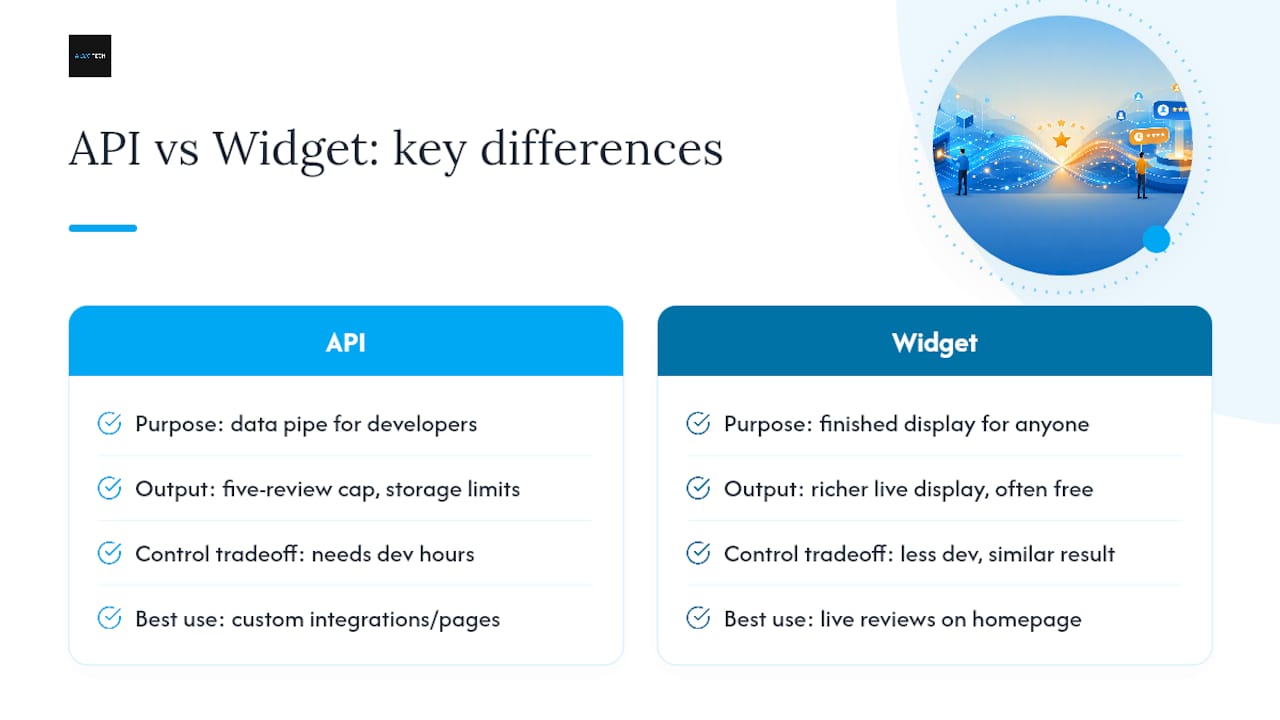
What actually matters is freshness and placement, not the method’s technical sophistication. A widget on your homepage, set to auto-refresh and filtered to show your strongest ratings, does more for conversion than a beautifully engineered API integration buried on a page nobody visits. Prioritize getting reviews visible where buyers actually look before you worry about pipeline architecture.
The other overlooked piece: compliance isn’t optional. Google’s terms on storage and display aren’t suggestions, and businesses that scrape and cache review content past what’s allowed risk losing access entirely. Start with a compliant widget, confirm it updates correctly, and only reach for the API when a widget genuinely can’t do what your business needs.
— Prasad
When a Managed Review Display Makes More Sense
Widgets and the Places API both work, but they both leave the ongoing management to you: monitoring new reviews, responding to negative ones, and keeping the display current across every platform your customers actually use. That’s a real time cost most marketing teams underestimate.

A reputation management platform can handle that layer directly, managing reviews across Google and other platforms in one place, applying sentiment analysis to flag issues before they spread, and automating responses so feedback doesn’t sit unanswered for days. If you’re comfortable pasting a snippet and checking in occasionally, a DIY widget still gets the job done. If you’d rather have review monitoring, response management, and display all running without your daily attention, that’s the gap a managed service closes. Visit Aiseo’s reputation management page to see how ReviewSync fits your current setup and get a sense of what a managed rollout would look like for your business.
Sources
- Embedding Google reviews on my website – Google Business Profile Community
- Review data — Google developers
- How to Embed Google Reviews on Your Website | Common Ninja