Create a Google Review Link for India in Minutes with Place ID

Copy the “Get more reviews” link from your Google Business Profile, or build the canonical Place ID URL yourself: https://search.google.com/local/writereview?placeid=YOUR_PLACE_ID. Both open the review form directly for anyone who clicks. If you’d rather skip the manual work, a free generator or WordPress plugin can pull your Place ID and hand you a finished link and QR code in seconds.
TL;DR:
- Using a Place ID URL allows for quick, repeatable review link generation suitable for automation and multi-location management.
- Manual URL building requires accurate copying of the Place ID and testing to prevent errors that lead to search pages rather than review forms.
- Free generators and WordPress plugins simplify link creation but should be checked for reliability, data privacy, and tracking capabilities.
- Placing review links strategically within post-sale communications and in-store signage increases review response rates, especially when timing requests within days of service.
- Automated platforms like ReviewSync centralize review requests, tracking, and response management, reducing manual effort and improving campaign attribution.
Table of Contents
- Quick Methods to Create a Google Review Link
- How Do You Get a Review Link From Google Business Profile?
- How Do You Build a Review Link From Your Place ID?
- When Should You Use a Free Generator or Plugin?
- Where and When Should You Share Your Review Link?
- Why Won’t My Google Review Link Work?
- Where Do Review Links Fit Into an Automated Reputation Workflow?
- Turn Review Requests Into a System, Not a Task List
- Sources
Quick Methods to Create a Google Review Link
You have four practical ways to get a working link, and the right one depends on how often you’ll use it and how much control you want over tracking.
- Google Business Profile share dialog: the fastest option if you already manage the listing. Google generates a short link through the “Get more reviews” panel, ready to copy and send.
- Place ID + canonical URL: build
https://search.google.com/local/writereview?placeid=YOUR_PLACE_IDyourself using your Place ID. This version is stable, repeatable, and ideal for automation. - Copy from a Google Search result: if you just need a one-off link for a single email or text, Google’s Maps sharing flow lets you copy a review link straight from the search or Maps result.
- Free generators or WordPress plugins: tools that turn a Place ID or business name into a finished link, HTML button, and QR code without any manual URL-building.
Each method lands you at the same destination: the native Google review form. The difference is speed versus flexibility.
How Do You Get a Review Link From Google Business Profile?
This is the method most business owners reach for first, since it requires no technical setup and works straight from the dashboard.
- Sign in at business.google.com, or open your Business Profile directly from a Google Search of your business name.
- Look for “Get more reviews” or “Share review form” in the profile panel. Some interfaces label this option “Read reviews.”
- Click “Copy link.” Google confirms the copy to your clipboard, which is your cue the link is ready to paste anywhere.
- If you want a printable option, download the QR code from the same panel. Google’s own Business Profile support documentation notes that QR code downloads only work through a desktop browser, so save it before you switch to your phone.
- Test the link on both a desktop browser and a mobile device before sending it to a single customer. Open it while signed in to confirm the review form actually appears, not just your business’s profile page.
Pro Tip: Paste the link into a private or incognito browser window too. That’s the closest simulation of what a customer sees when they click from a cold email or text message.
How Do You Build a Review Link From Your Place ID?
The Place ID method takes a few more minutes upfront but pays off the moment you need more than one link or want to plug review requests into automated sequences.
Start by opening the Google Place ID Finder tool, or pull the ID from your Business Profile or a Maps listing URL. The token typically starts with “ChIJ” and stays fixed for that listing unless Google merges or removes it. Once you have it, assemble the link:
https://search.google.com/local/writereview?placeid=YOUR_PLACE_ID
Swap in your actual Place ID after the equals sign, and the URL opens the review dialog directly, no search results page in between.
- Grab the Place ID from Maps, the Business Profile dashboard, or a dedicated finder tool.
- Drop it into the canonical template above exactly as copied, with no extra spaces or characters.
- Save the finished link in a document or CRM field you can reuse across every campaign.
- Confirm it opens the write-review dialog, not a generic search page, before distributing it.
Because the pattern never changes beyond the Place ID itself, multi-location brands can template the URL across every branch, swapping in each location’s own ID for CRM fields or automated email triggers. That predictability is what makes Place ID links the backbone of any review-request automation, not the share-dialog link, which can vary by session and account.
When Should You Use a Free Generator or Plugin?
Generators and WordPress plugins take the manual steps above and compress them into a single form field. You type in a business name or Place ID, and the tool returns a direct writereview link, a QR code, and often an HTML button snippet you can paste straight into an email template or website footer.
They make the most sense when you’re not comfortable hand-building URLs, you need a printable QR code fast, or you want a ready-made button for a thank-you page without touching code.
Before you commit to one, run through a short checklist:
- Does it work without requiring an account or login?
- Is it accessible and reliable for businesses operating in India?
- Does it offer basic click analytics, or just a static link?
- What does it say about storing or sharing your business data?
Pro Tip: Stick with the official canonical link for day-to-day use. Only reach for a shortened or generator-built version when you specifically need click tracking, since shorteners add a redirect step that occasionally trips up older mobile browsers.
Where and When Should You Share Your Review Link?
Placement matters almost as much as the link itself. A perfect writereview URL buried on page four of your website earns you nothing.
- Drop it into the post-purchase or post-service email, sent while the experience is still fresh.
- Add it to delivery confirmation texts or SMS follow-ups, which tend to get opened within minutes.
- Print it on receipts, either as a short URL or a QR code customers can scan on the way out.
- Place it on your website’s thank-you page immediately after checkout.
- Share it through WhatsApp for service businesses that already communicate with clients that way.
- Display it as in-store signage near the register or checkout counter.
Timing beats volume here. Ask within a day or two of the purchase or service call, not weeks later, and automate the follow-up so it doesn’t depend on someone remembering. Keep your request short: “Enjoyed working with us? We’d appreciate a quick Google review,” followed by the link, and a one-line reminder that customers need to be signed in to their Google account for the form to load. Never offer a discount, gift, or incentive tied to a positive review. Google’s own policies treat that as review manipulation, and it can get a listing’s reviews removed entirely.
Why Won’t My Google Review Link Work?
A handful of predictable problems account for most broken review links, and every one of them is fixable in a few minutes.
- Wrong Place ID: double-check every character. A single typo sends customers to a search page instead of the review form.
- Unverified listing: Google won’t reliably serve the review dialog for a Business Profile that hasn’t completed verification.
- Suspended or merged listing: if Google merges duplicate listings or suspends one for a policy violation, the old Place ID may return a “not found” error or dump users on a generic search page.
- Stale short links: older shortened URLs sometimes fail specifically on mobile browsers even when they work fine on desktop, so retest after any link-shortening step.
Run this quick verification before mass distribution: confirm your listing shows as active in your dashboard, recheck the Place ID against the finder tool, and open the link once signed in and once signed out to see both experiences.
Where Do Review Links Fit Into an Automated Reputation Workflow?
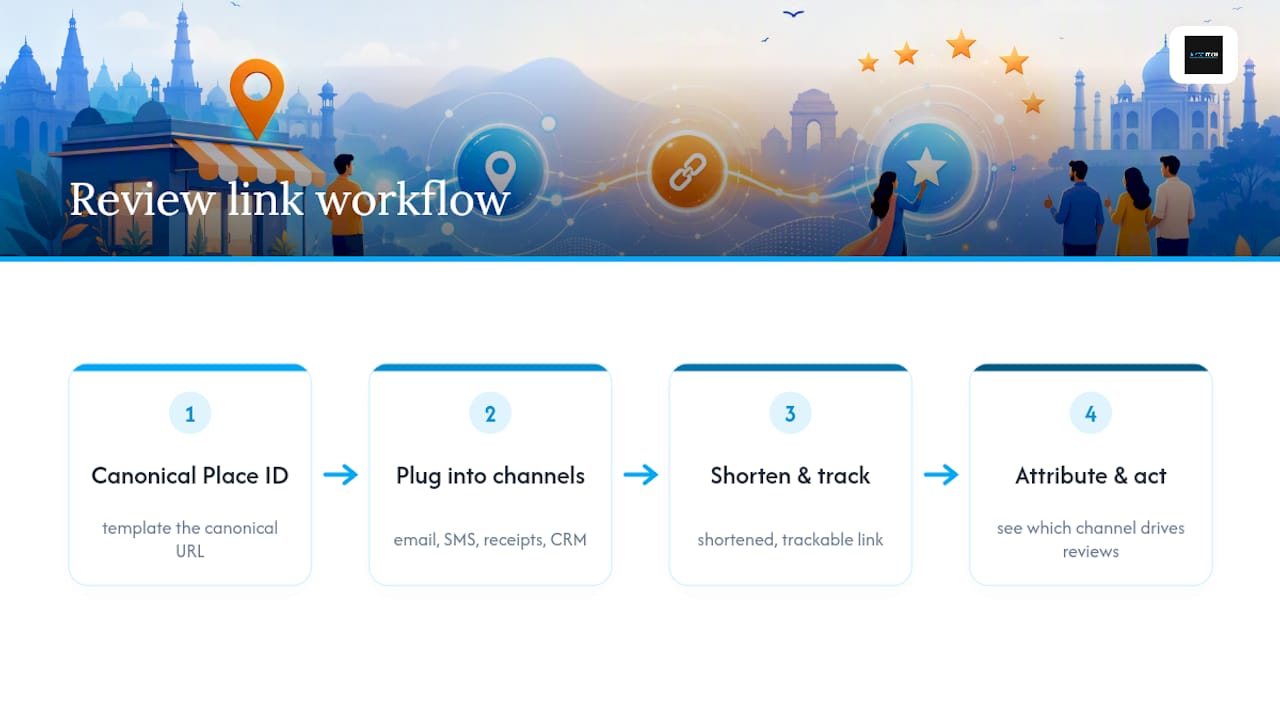
Treat your Place ID link as infrastructure, not a one-off task. Once you’ve template the canonical URL, it plugs directly into post-purchase email sequences, SMS platforms, and CRM fields without anyone re-copying links by hand for every campaign.
The real value shows up in attribution. A shortened, trackable version of the same link lets you see whether email, SMS, or printed receipts actually drive reviews, which tells you where to put your follow-up budget next quarter. Businesses running review requests across multiple channels rarely guess right about which one performs best. They measure it.
— Prasad
Turn Review Requests Into a System, Not a Task List
Manually copying links, checking Place IDs, and guessing which channel worked is fine for one location. It falls apart the moment you’re running requests across email, SMS, and multiple branches at once. Aiseo’s ReviewSync platform automates the review-request cycle end to end, centralizing incoming reviews from every platform, tracking which channel actually generates clicks, and flagging responses that need attention before they sit unanswered for a week.
Instead of manually rebuilding writereview links for every new campaign or location, you get one system that handles the requests, the tracking, and the response management together. If you’re already sending review links through email or receipts and want to see which ones are converting, check how ReviewSync’s reputation management tools fit your current setup.
Sources
For the official word straight from Google, and a few practical extras: